Color Theme Planner App
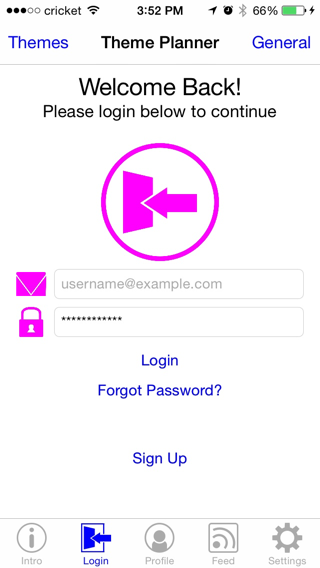
Color Theme Planner allows you to quickly design and test different color palette’s right on your phone. Create and save different mockups and then switch between them to compare, choose your colors using rgb or hsb, and save all of your themes for later.
—
*How to Use*
Step 1:
To begin, select a UI-Element to see its properties.

Step 2:
Then select the property you wish to edit.
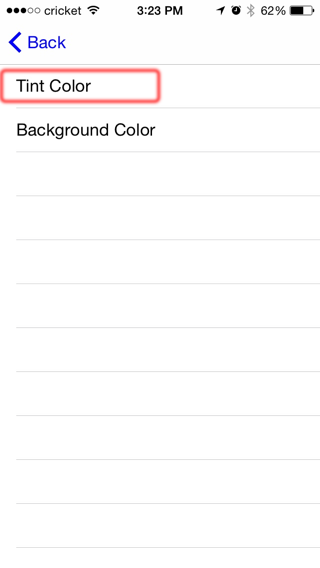
Step 3:
Next, select the color block to see the color collection screen.
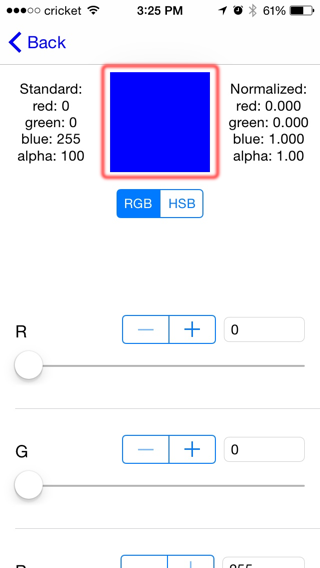
Step 4:
From here, you can click either one of the default colors, or select the ‘+’ button to create a new color block.
If you want to delete a color, select the ‘Edit’ button and click the color you want to delete.
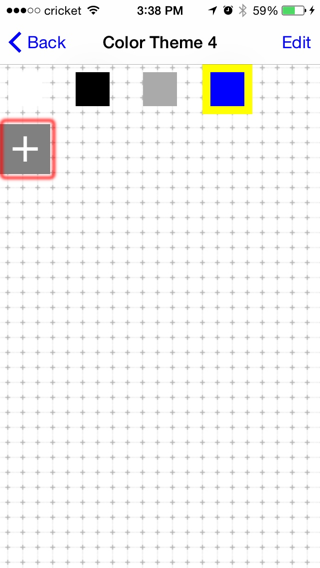
Step 5:
Now play with the sliders until you have the desired color.
For precision, use the ‘+’ and ‘-‘ stepper to skip to the nearest value of 5.

Step 6:
And thats it! Follow the same process to change other elements on the screen.
—
Additional Info:
*General*
For general UI-Elements such as the Navigation bar, View Background or Tab Bar, you’ll find them in the ‘General’ section.
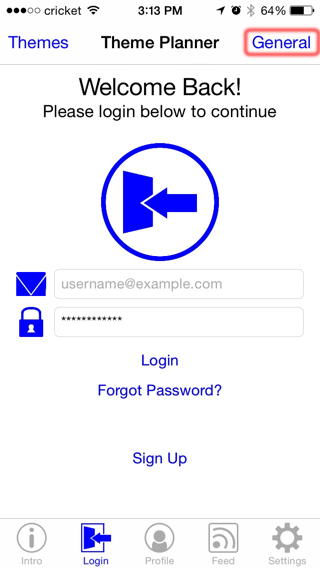
- Under the ‘General’ section, select the property you want from the list.
- Follow the instructions above to change its color.
—
*Themes*
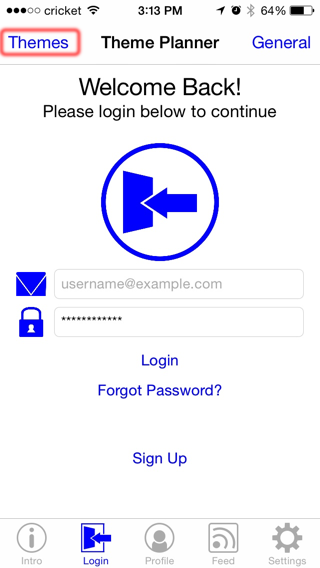
To create a new palette to work with, select ‘Themes’ in the top left corner.
Step 9:
Under the ‘Themes’ section you can create and manager your color palettes.
Use the ‘+’ button to create a new palette.
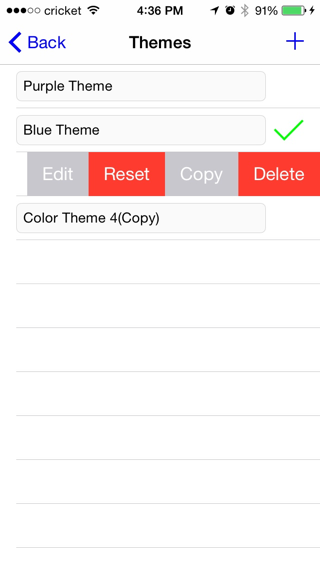
Slide a row to the left to see its options.
– ‘Edit’ will allow you to rename the palette.
– ‘Reset’ will set all colors to default. (All extra colors blocks will be deleted.)
– ‘Copy’ creates a duplicates the palette and all of its colors into a new palette.
– ‘Delete’ will delete the selected palette.
—
If you have any further questions please feel free to email us at:
support.color-theme-planner@fat-cat-studios.com.
We hope this helped! Thank you for using Color Theme Planner :)
—
Color Theme Planner was created by Fat Cat Studios